
How to Buy and Sell PayPal in Ghana with Mobile Money
 Click to Zoom
Trading PayPal in Ghana has always come with two major fears: “Will I get scammed?” and “How much will I actually receive after fees?”
At Earn More Cash Today, we have updated our exchange tool to version 6.0 to solve exactly that. We have introduced new security layers including Email OTP Verification and instant ban-checks to ensure that every transaction is legitimate.
This guide will walk you through exactly how to use our tool to withdraw funds to your Mobile Money wallet or top up your PayPal account, ensuring you never make a mistake during the process.
How to Withdraw PayPal to Mobile Money
If you have dollars in your PayPal account and need Cedis in your pocket, follow these steps.
1. Calculate Your Net Amount
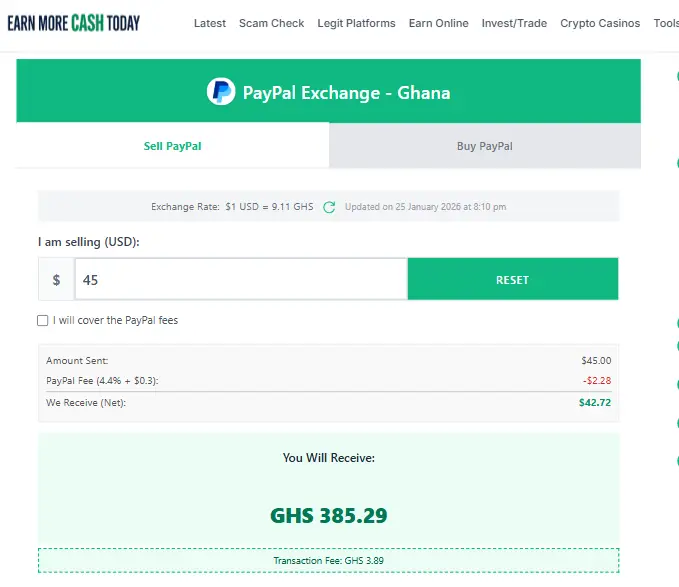
Visit the Earn More Cash Today PayPal Exchange tool and ensure the “Sell PayPal” tab is active.
Enter the amount of USD you want to send. You will notice a checkbox labeled “I will cover the PayPal fees”.
- Unchecked: We deduct the PayPal fee from what you send. You receive slightly less Cedis.
- Checked: You send extra to cover the fee so that we receive the exact amount you typed.
Pro Tip: Always look at the “We Receive (Net)” line. We pay you based on that number, not the gross amount you sent.
2. Make the Payment
Once you are happy with the rate, click the payment button.
- Smart Button: If you see the yellow PayPal button, click it to pay instantly via the popup.
- Legacy Button: If you see “Enter amount to Pay,” click it to be redirected to the secure payment screen.
3. The Security Verification
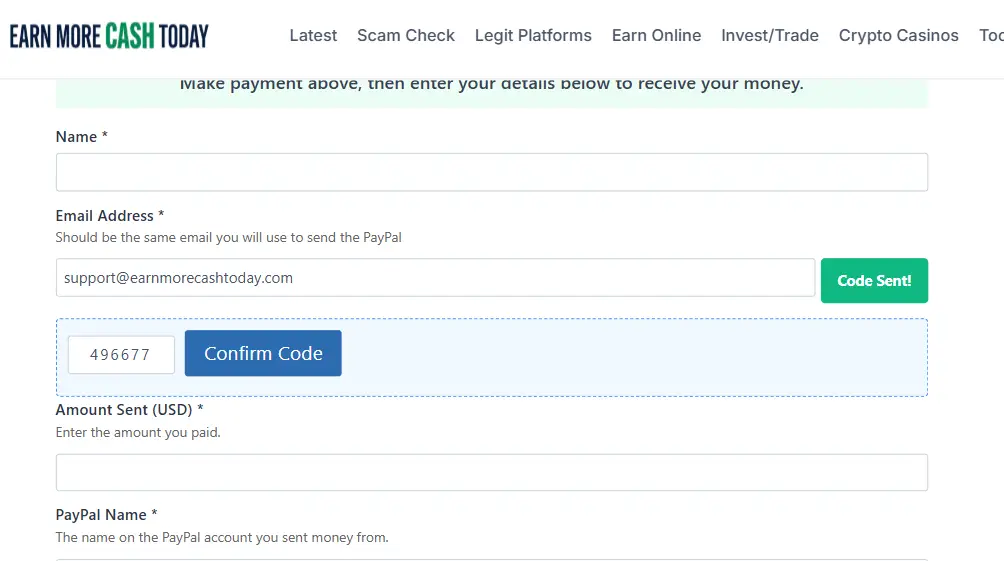
After your payment is successful, the order form will appear. This is where our new security system kicks in.
- Enter your Name.
- Enter your PayPal Email Address.
- Click Verify Email: You cannot submit the order without this. When you click this button, our system sends a 6-digit One-Time Password (OTP) to your inbox.
- Enter the Code: Copy the code from your email, paste it into the box that appears, and click “Confirm Code.”
This ensures that the person submitting the order actually owns the email address, protecting you from identity theft.
4. Submit Mobile Money Details
Once verified, the “Submit Order” button will unlock. Enter your:
- Mobile Money Number (MTN, Telecel, or AT).
- Mobile Money Name.
- PayPal Transaction ID (Optional but recommended for speed).
Click Submit. Our team checks the payment and releases the Cedis to your wallet.
How to Fund Your PayPal Account
Need to pay for Facebook Ads, eBay items, or web hosting? Here is how to buy PayPal funds using Mobile Money.
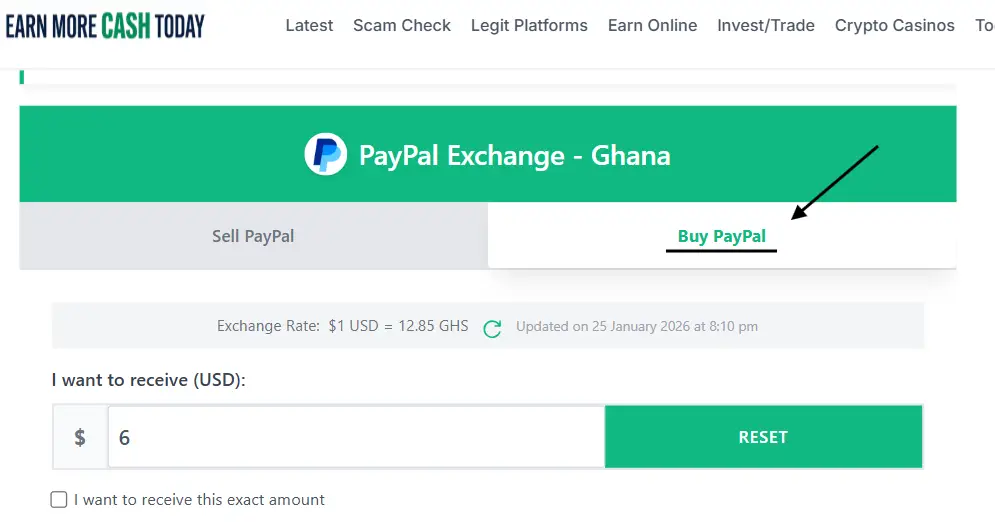
1. Switch to Buy PayPal
Click the second tab on the calculator labeled “Buy PayPal”.
2. Use the Exact Net Feature
This is a favorite feature for digital marketers.
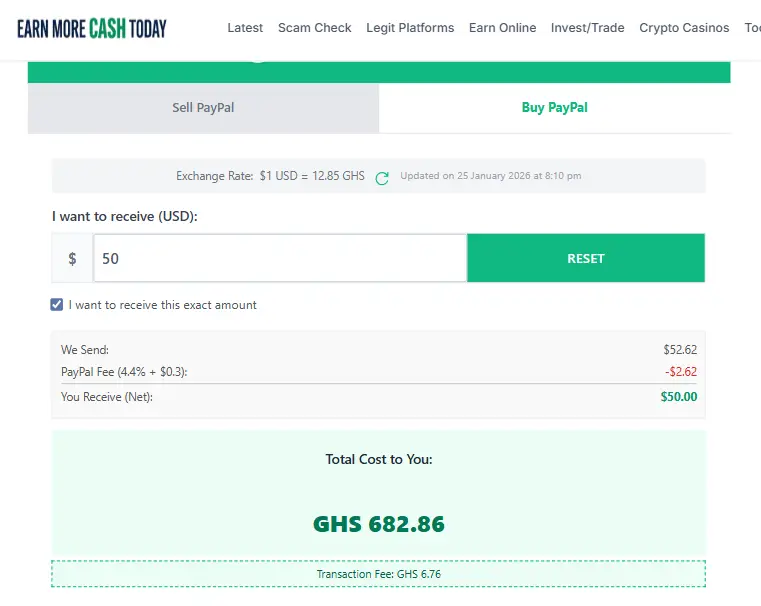
- You need exactly $50.00 to land in your PayPal balance to pay a bill.
- Check the box that says “I want to receive this exact amount”.
- The calculator will automatically adjust the GHS you need to pay us, ensuring that after PayPal takes their cut, you are left with exactly $50.00. No more falling short by a few cents!
3. Pay via Mobile Money
The tool will show you the Total Cost in Cedis (including the MoMo transaction fee).
- Read the Payment Instructions displayed in the blue box.
- Send the exact GHS amount to the number provided.
- Keep your Transaction Reference ID.
4. Verify and Submit
Just like selling, you must verify your identity:
- Enter the email address where you want to receive the funds.
- Click “Verify Email” and enter the OTP code sent to you.
- Fill in the MoMo number you paid with and your contact details (WhatsApp/Call).
Once submitted, we verify the MoMo transfer and send the dollars to your email.
Understanding Status Messages
To keep the platform secure, you might occasionally see an overlay message covering the tool. Here is what they mean:
- We’re currently Offline: Our team is not at their desks. Since we manually verify transactions for safety, we turn the tool off when we cannot process orders immediately.
- We’re Closed: We operate on a schedule (Mon-Fri 9am-4pm, Sat-Sun 12pm-6pm). If you visit outside these hours, you will see a countdown timer showing when we open next.
- You have been banned: If you enter your email and see a red error message saying you are banned, our system has flagged your email for suspicious activity or previous payment issues. You will see a specific reason (e.g., “Fraudulent activity detected”).
Troubleshooting & Support
The “Restore Purchase” Feature
Did your internet cut off after you paid via PayPal but before you submitted the form? Do not pay again. Simply type any amount. A link saying “Restore Purchase” will appear under the calculator. Click it, and the system will skip the payment step and take you straight to the form so you can submit your details.
Transaction Limits
To ensure speed, the automated tool handles transactions up to $500. If you need to exchange more than $500, the tool will disable the buy/sell buttons and ask you to contact us. We handle high-volume trades personally to give you better rates.
Need Help?
If you face any issues with verification codes not arriving or payments delaying, please reach out to our support team.
Subscribe for alerts on new scams and real opportunities.
Have you been scammed?
If you have lost money or suspect a website is fake, report it to us immediately to warn others.
REPORT A SCAM NOW